
Docs
Documentation
Getting started
Install Ember with Homebrew:
brew install --cask kingb/ember/emberbrew install kingb/ember/emberOr build from source. Ember opens to a single shell. Open a new tab with Cmd+T, and split the current pane with Cmd+D. That is the whole learning curve, the rest teaches itself as you use it.
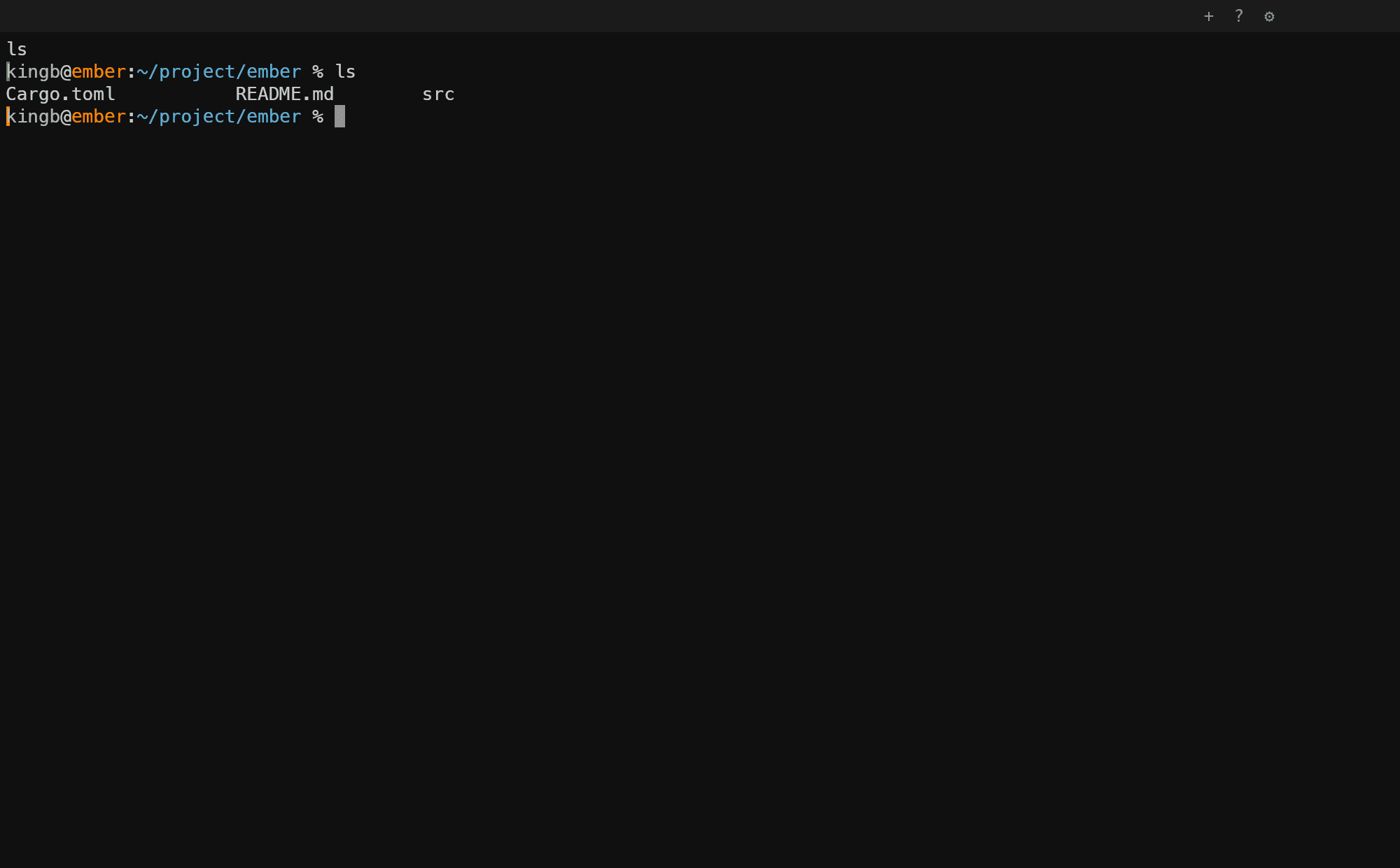
Panes Added in v0.1.0
Split any pane side by side with Cmd+D or stacked with Cmd+Shift+D, or hold Ctrl+Opt and click to split by drop zone. Move focus by direction with Cmd+Arrows or just click a pane, resize by dragging the divider, and close one with Cmd+W.
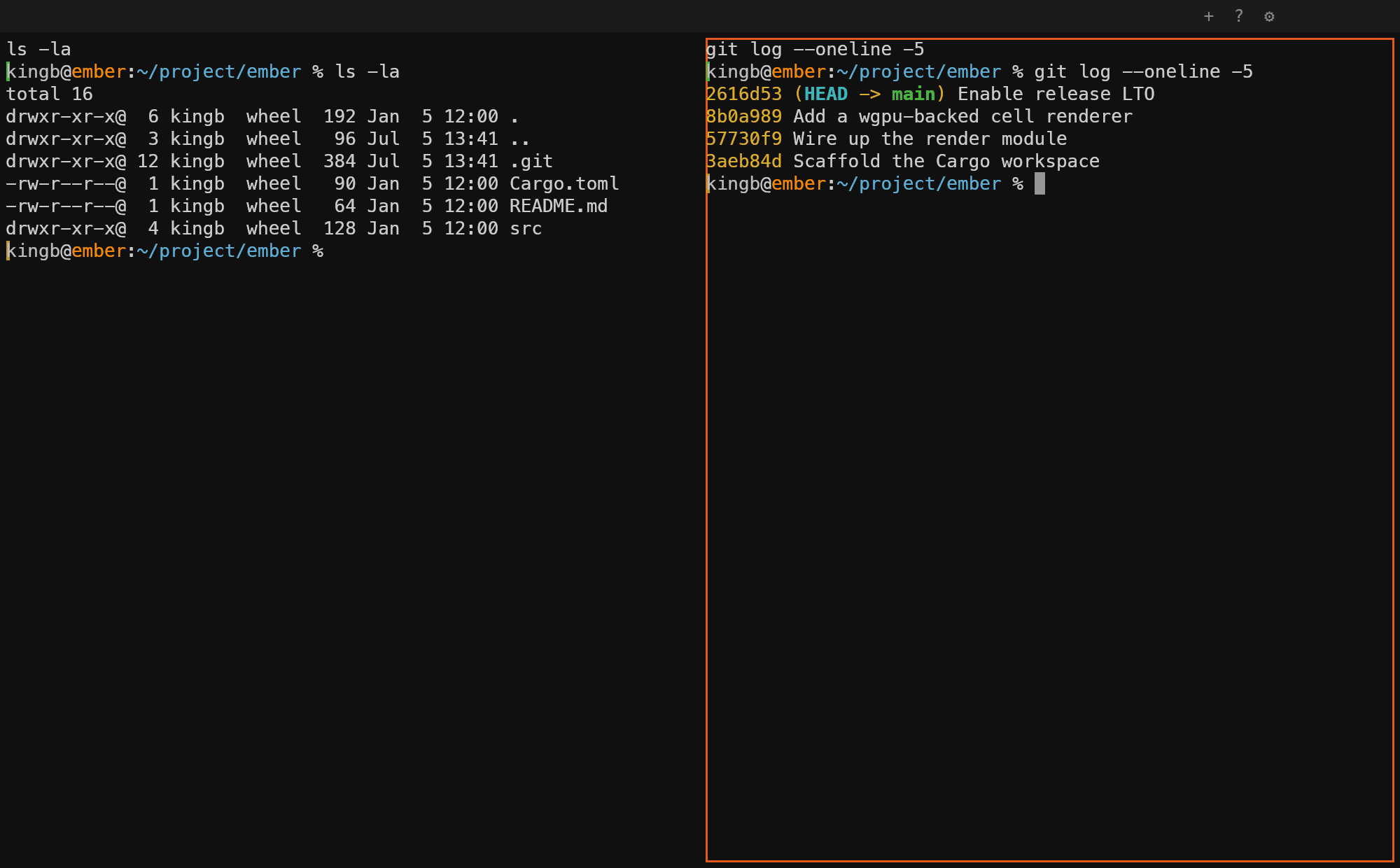
Tabs Added in v0.1.0
New tab with Cmd+T, jump straight to one with Cmd+1–9, or cycle with Cmd+Shift+Arrows. Drag tabs to reorder them, and double-click a tab to rename it.
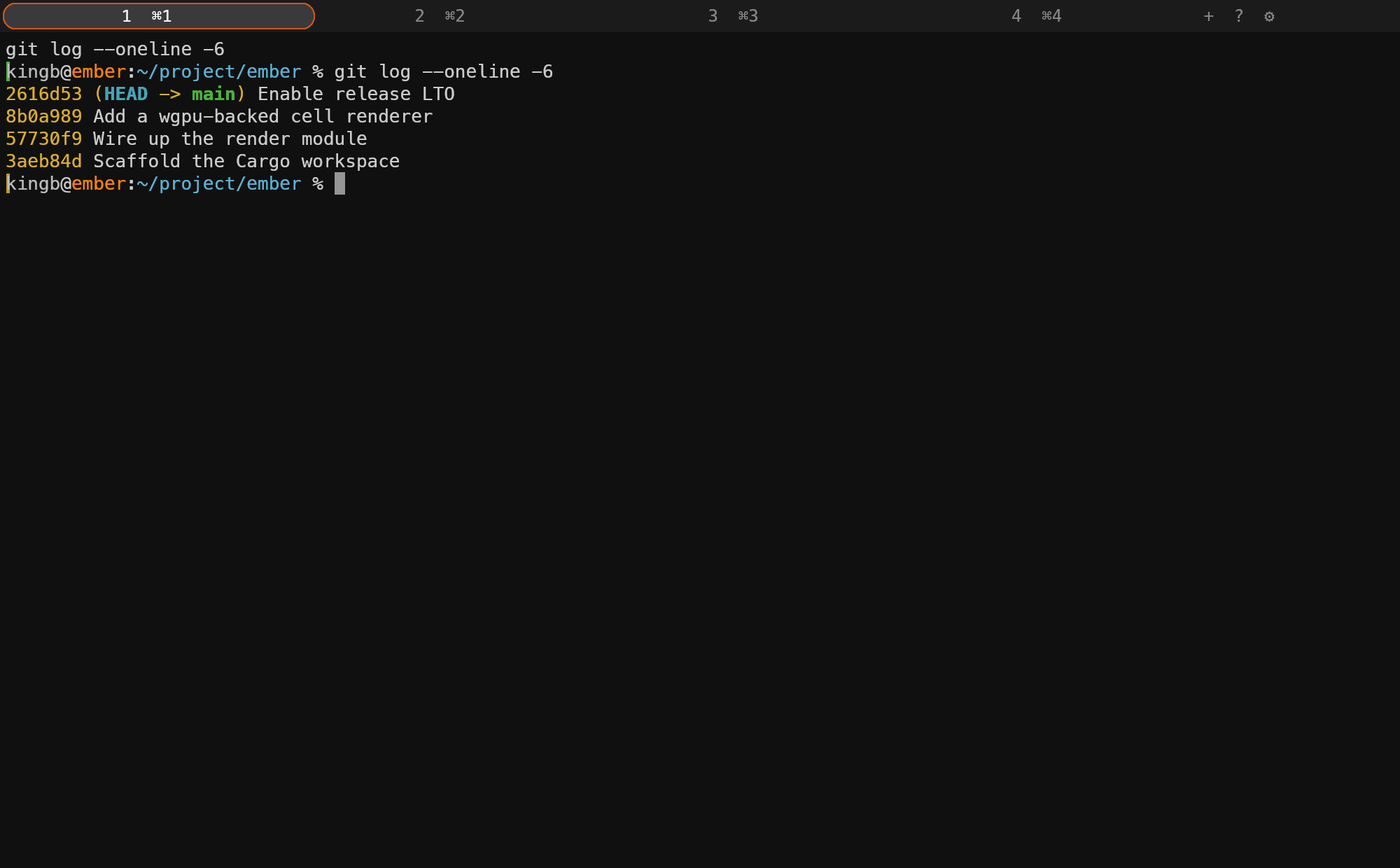
Windows & moving things around Added in v0.3.0
Open a new window with Cmd+N. Windows are peers: the same settings, independent tabs and focus. Any surface can move between them. Drag a tab off the strip to tear it into its own window, or drag a pane and drop it on the edge of another pane to split there, on its center to add it as a tab, or onto empty desktop to open a new window. Shells keep running through every move.
A drag reads clearly the whole way. Added in v0.4.0 As you carry a surface, it collapses toward your cursor, and over any tab strip a shimmering ghost tab shows exactly where it will land, labeled with its title, while the other tabs slide over to make room. Hover a tab for a beat mid-drag and it opens (spring-loaded, like Finder folders) so you can drop down into its panes. Drop pours the surface back out at the landing spot; Esc pours it back where it started.
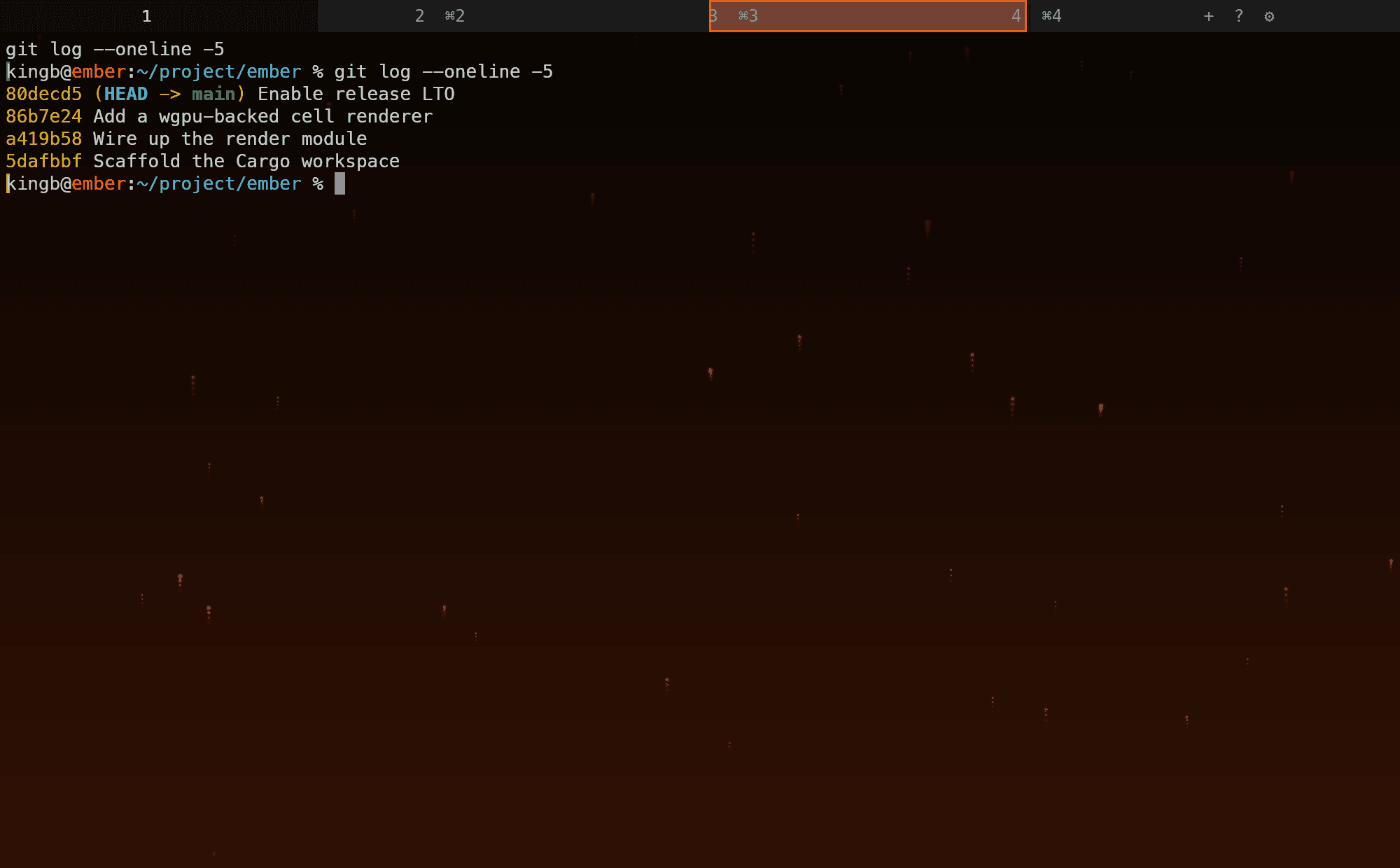
You do not need the keyboard to start a drag. Press and hold on a pane or a tab Added in v0.4.0 and an ember ring closes around your cursor; when it completes, the surface lifts into a wisp, a small glowing ember that rides the pointer while you carry it. Move before the ring closes and it is just an ordinary click.
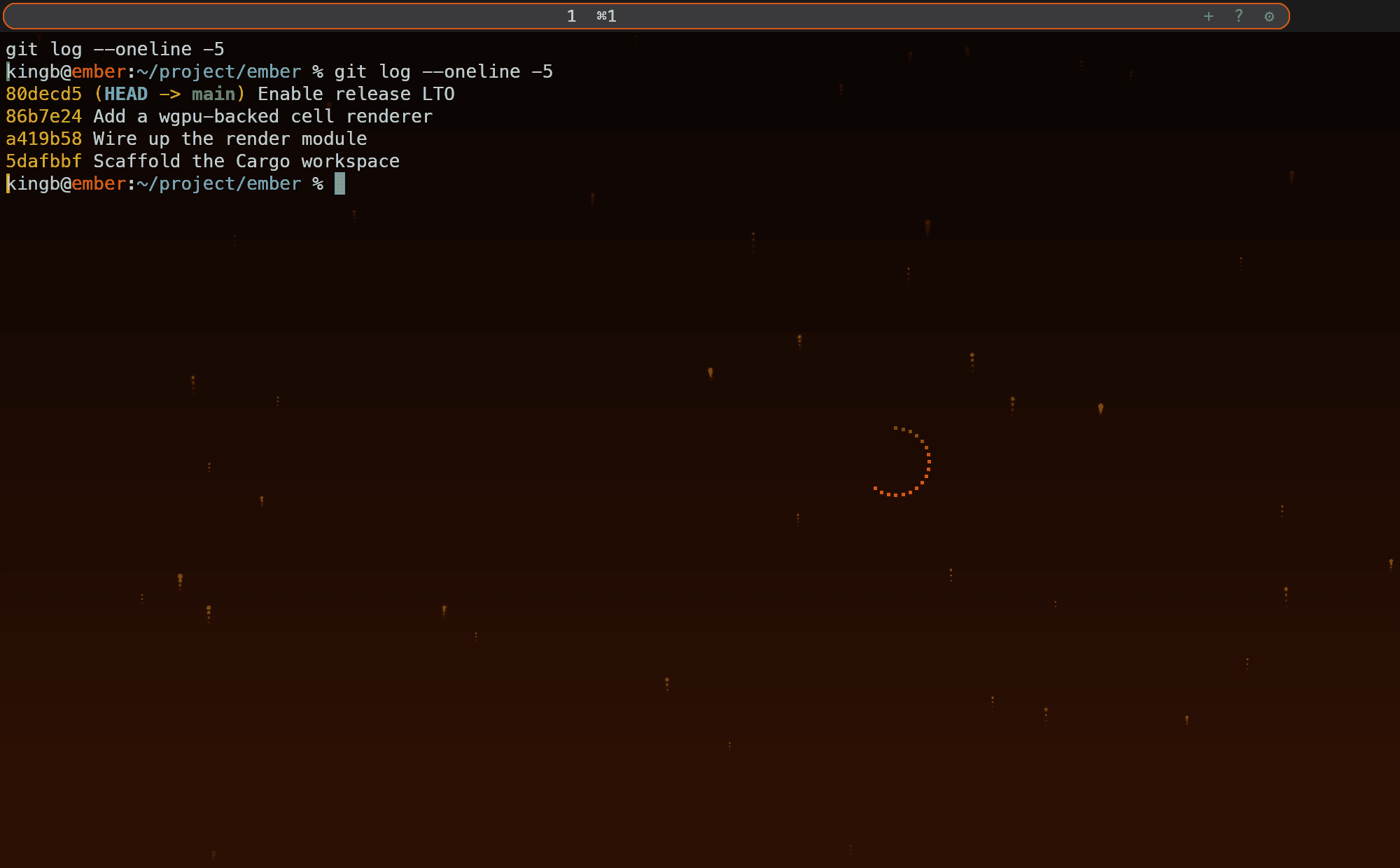
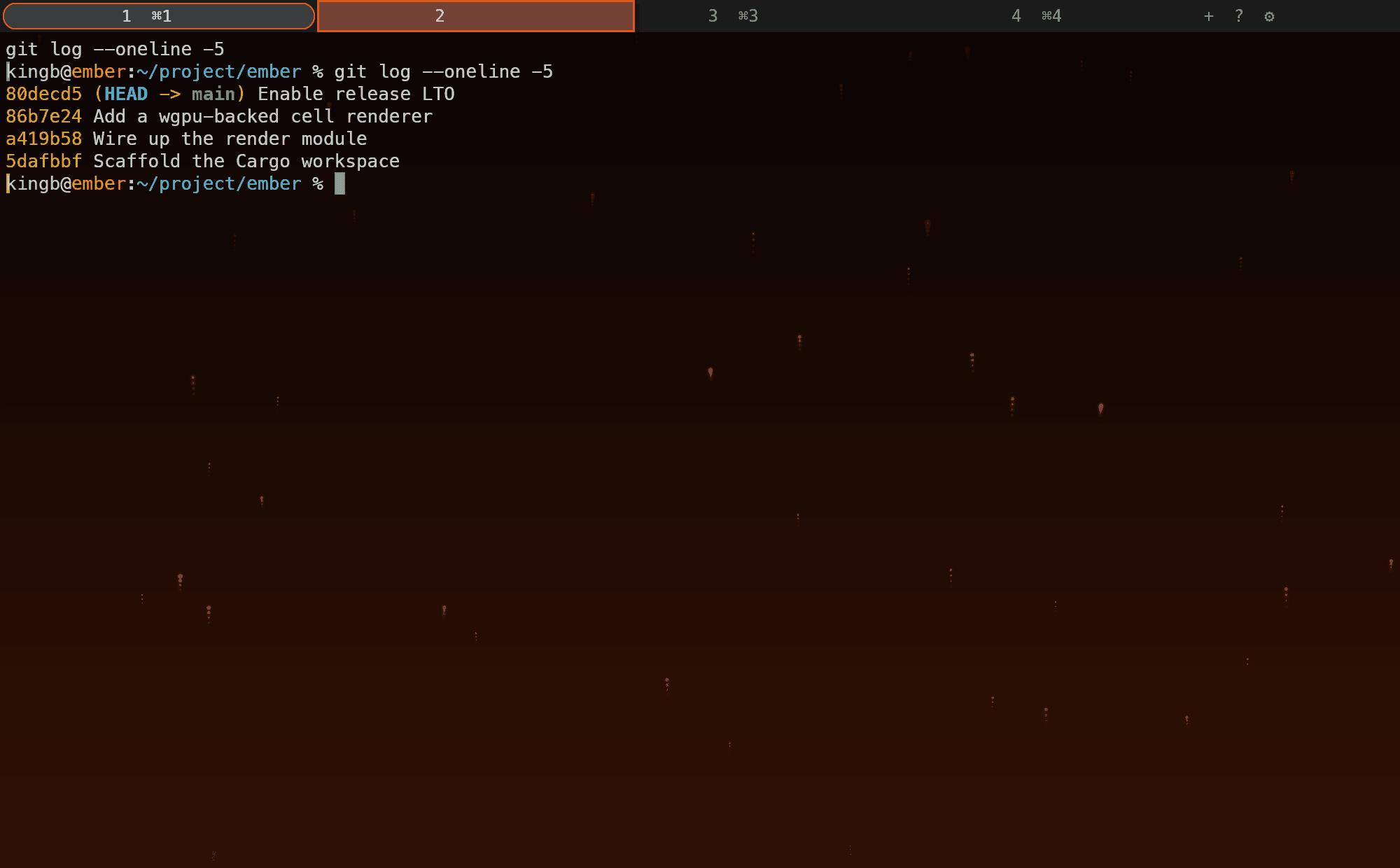
The wisp comes in six looks you can pick in Settings Added in v0.4.1: Cinder, the original amber core and orbiting sparks (renamed from Ember, which still works); Coal, a charcoal rock with pulsing hot cracks and a shower of rising embers; Will-o'-the-wisp, a cool, breathing orb trailing a wisp of vapor; Comet, a clean white-hot head; Goo, a wobbling molten droplet; and Star, a white core with a lens-flare sparkle. A Random option steps to a fresh style on each drag.
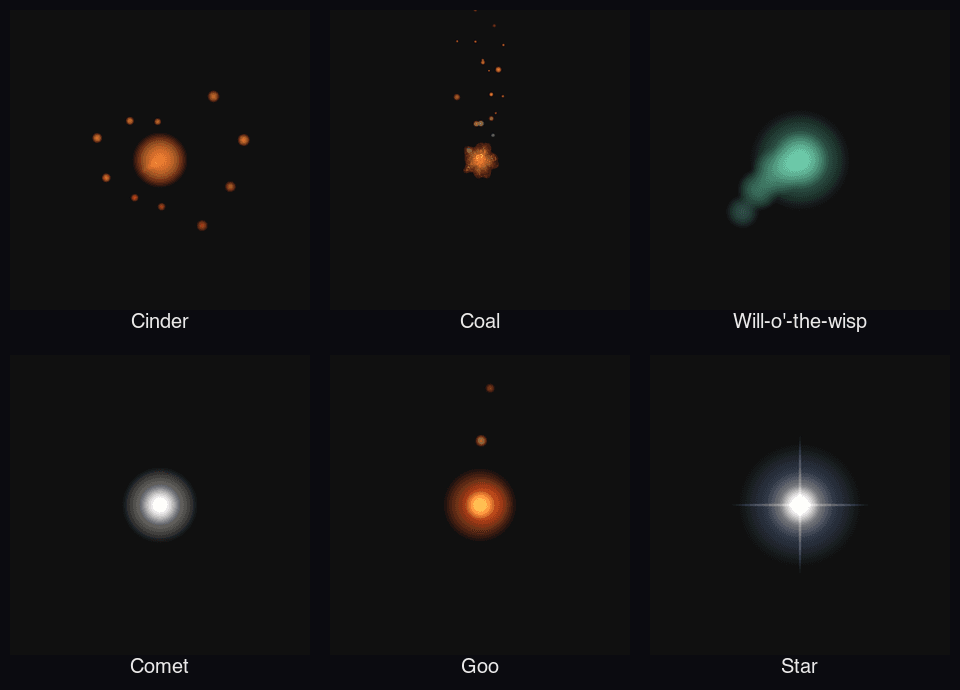
Keyboard shortcuts Added in v0.1.0
Press Cmd+/ at any time for the full cheat sheet, grouped by panes, tabs, selection, scrollback, and shell. The sheet shows the bindings for the platform it is running on.
Appearance Added in v0.1.0
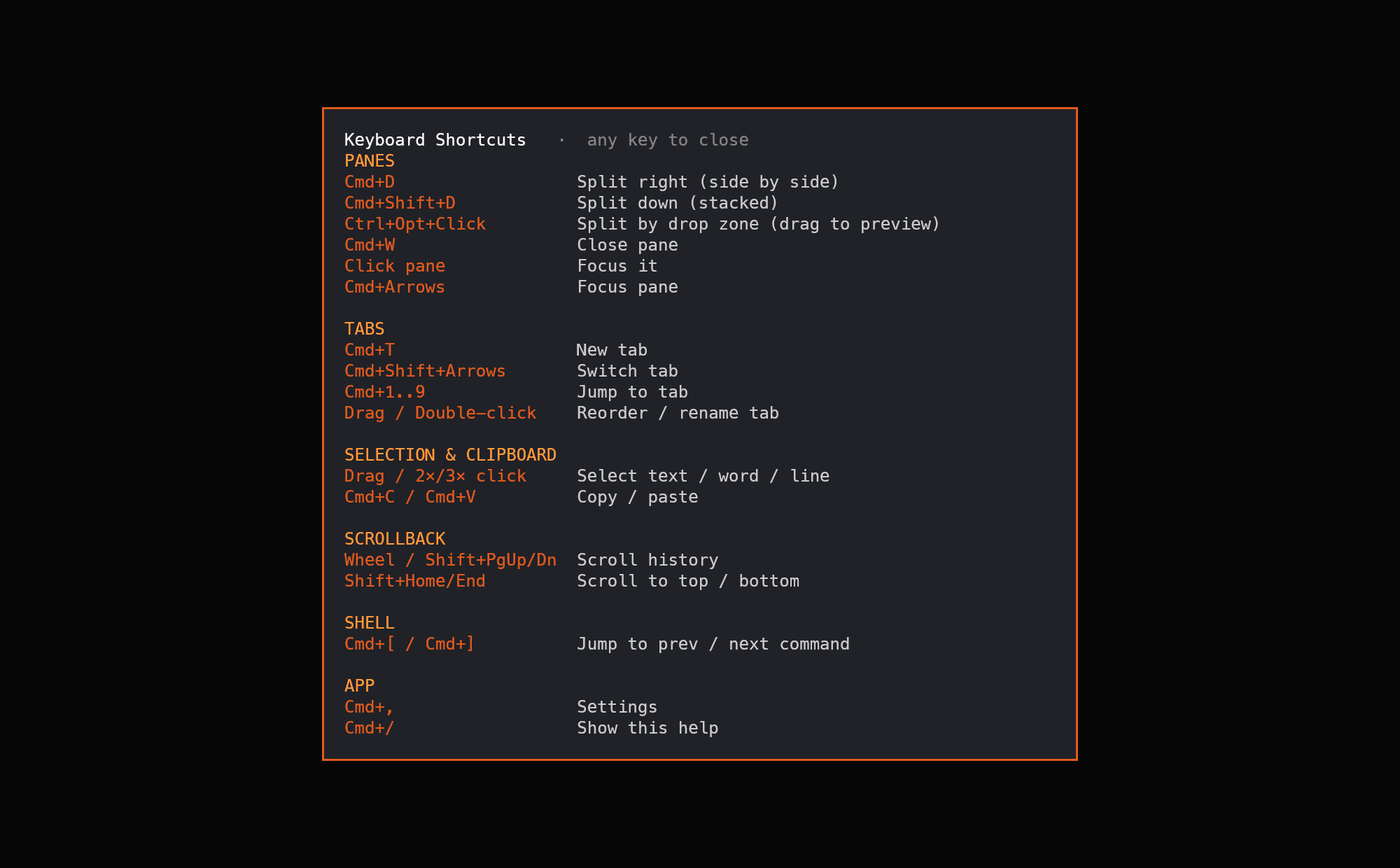
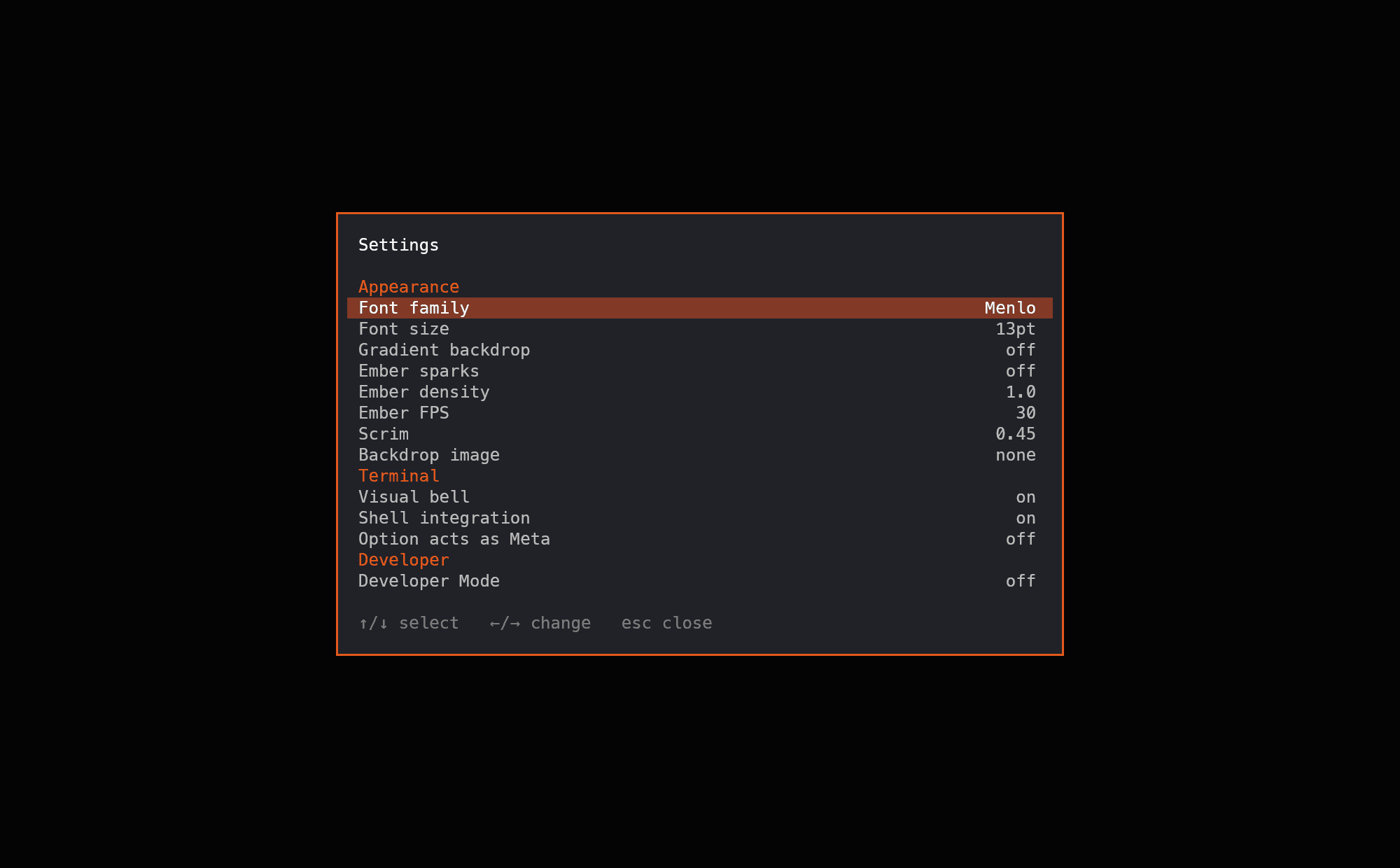
Ember opens with its campfire lit: a warm gradient behind your shell with ember sparks drifting over it as glowing trails. By default the animation runs only in the focused window, and it pauses itself in Low Power Mode and under Reduce Motion, so it costs about as much as a background browser tab where you are looking and nothing anywhere else. The sparks dial cycles through off, focused (the default), and always Added in v0.3.1, right in Settings (Cmd+,). Set the font family and size there too Added in v0.2.0, and zoom live with Cmd+= / Cmd+− / Cmd+0.
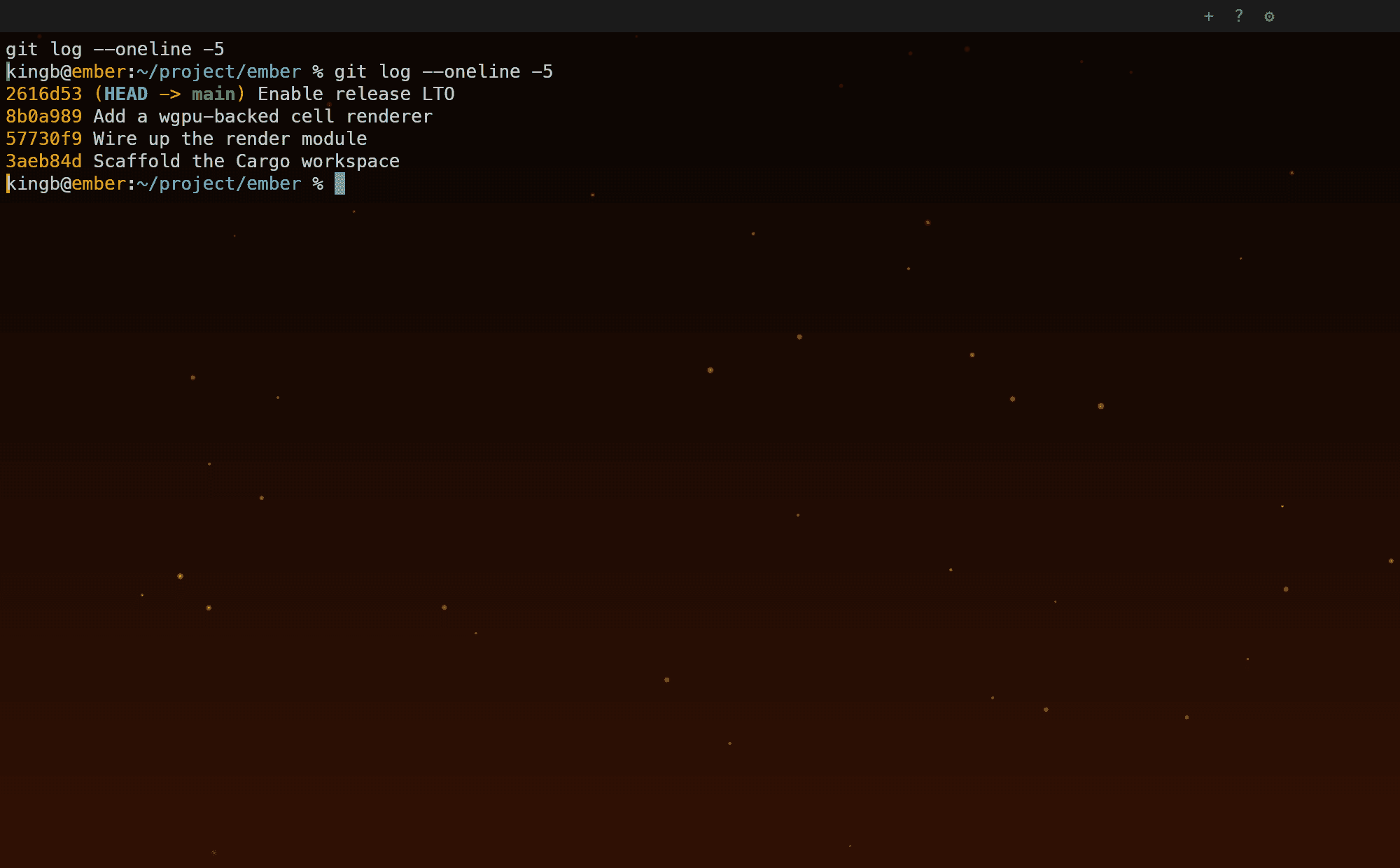
It all lives in one Settings overlay, from the font family and backdrop to shell integration and Developer Mode.
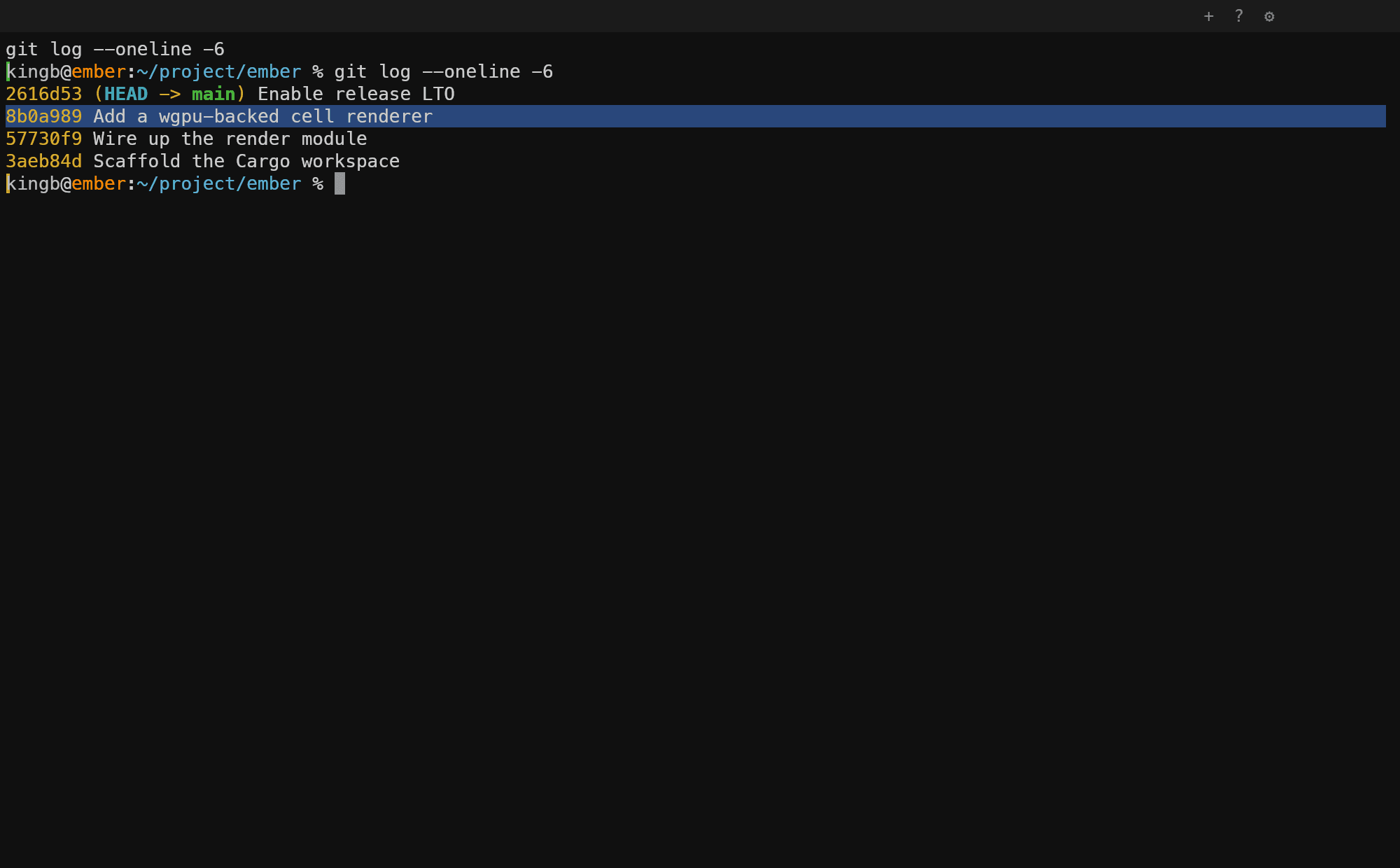
Selection & copy Added in v0.1.0
Select with the mouse: drag for a range, double-click for a word, triple-click for a line. Copy with Cmd+C and paste with Cmd+V (bracketed, and wrapped lines copy back as one line). Scroll through history with the wheel or Shift+PgUp / Shift+PgDn.
Clickable URLs Added in v0.2.0
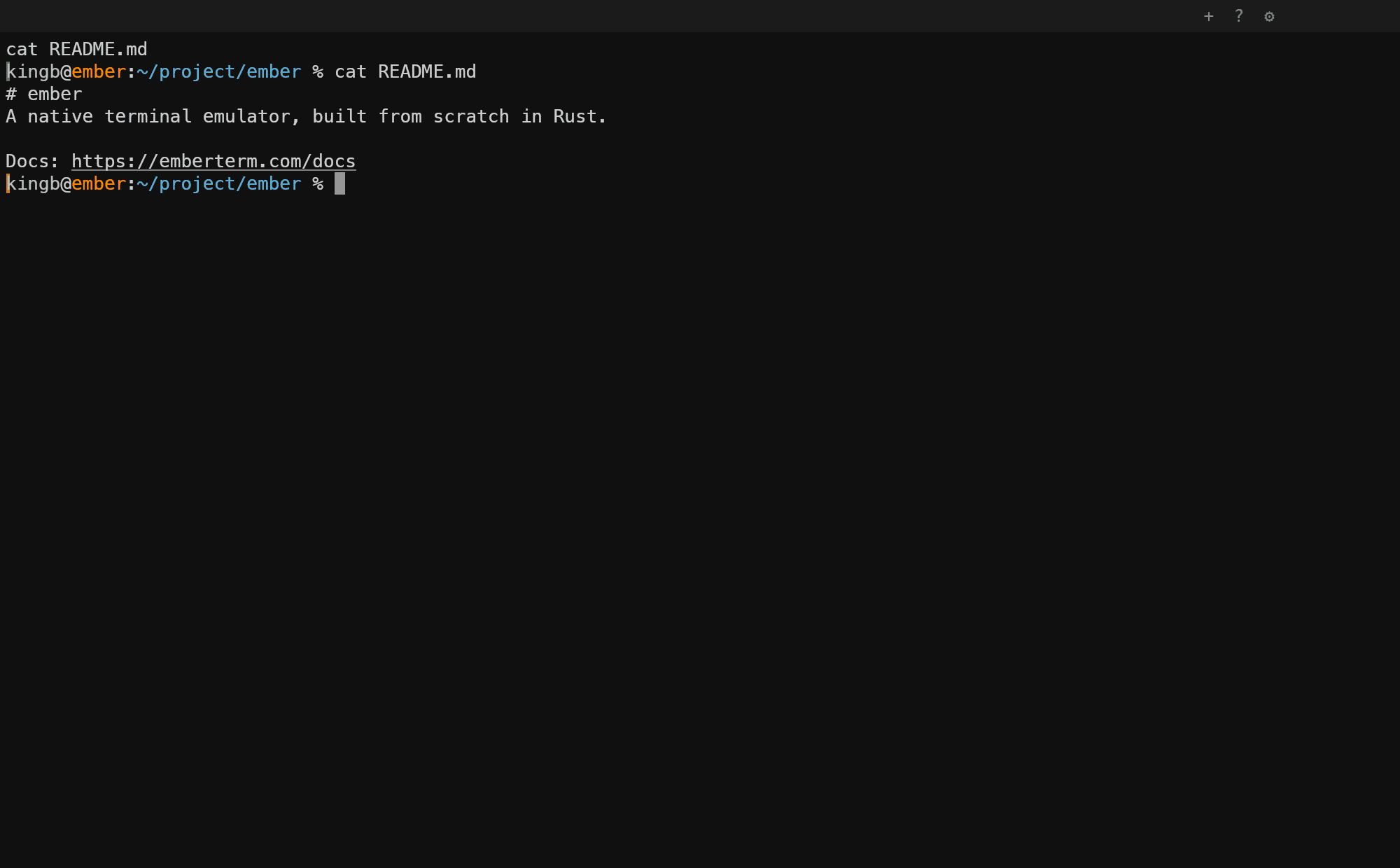
Web links in terminal output are subtly underlined. At the prompt, just click one to open it in your browser. Inside mouse-driven apps like vim or tmux (which own the mouse), hold Cmd and click instead.
Drop a file to the prompt Added in v0.4.2
Drag a file from Finder (or a Linux file manager) onto a window and its path is inserted at the prompt, shell-escaped the way iTerm2 does it: plain paths pass through bare, paths with spaces or special characters are single-quoted, and multiple files arrive space-separated. Delivery respects bracketed paste, so dropping into a shell that has it enabled stays safe.
Shell integration Added in v0.1.0
When your shell speaks iTerm2's shell-integration escape codes, Ember marks each command in the gutter with its exit status (green, red, or amber) and lets you jump between prompts with Cmd+[ / Cmd+]. It installs itself into zsh and bash with no manual setup.
Developer mode Added in v0.1.0
Ember can be driven and inspected from the outside: by a script, a CI job, or an AI agent. Turn on Developer Mode in Settings (it applies live, no restart) and the running instance listens on a private unix socket, owner-only and scoped to that instance. It is off by default and stays off unless you turn it on.
From the command line, ember-term ctl talks to the live terminal: type text, press named keys, send shortcut chords, or dump the grid state (dimensions, cursor, styles, screen text) as JSON. With one instance running it finds it automatically.
ember-term ctl listember-term ctl type 'ls' && ember-term ctl key Enterember-term ctl stateThe same surface is exposed as an MCP server: ember-term mcp speaks the protocol over stdio, so any MCP client can drive the terminal and even capture screenshots of it. To use it from Claude Code:
claude mcp add ember -- ember-term mcpThen ask your agent to run a command in Ember, read what is on screen, or verify the result of what it just did: a terminal it can see.
Linux desktop launcher Added in v0.4.2
On Linux, Ember ships a desktop entry and icons so it appears in the GNOME app grid and KDE launcher, with running windows grouped under that icon. Homebrew installs those assets under its own prefix, which desktop environments do not scan, so after brew install kingb/ember/ember the formula prints a one-line command that copies the entry into your user profile with the correct absolute path. Run it once and Ember shows up in your launcher — no sudo required.